The terminal program
bin/trading-agent with no subcommand opens a full-screen chat with the desks, modelled on Claude Code's terminal interface. It can do everything the web page does: talk to any desk, answer its questions and permission requests, send and receive pictures and documents, watch the side panel's cards, and open every page, from Trading with its kill switch to Schedule and Files. The only web feature it lacks is voice input, because that uses Chrome's speech recognition, which a terminal does not have.
It is a client of the running gateway, exactly as the web page is: it sends requests to the same routes with the access token, and it receives the same live events over one connection. The gateway, the desks and the risk engine do not know or care which of the two you use, and you can use both at once.
Starting it
The gateway must be running, as the service normally keeps it. Then, from any folder:
bin/trading-agent                  # opens on the desk you used last, or general
bin/trading-agent --desk scalper   # opens on the scalper desk
The token is read from TRADING_AGENT_GATEWAY_ACCESS_TOKEN in .env, so there is nothing to paste. Your earlier prompts, the theme, the last desk and which side panel cards you folded are kept in ~/.local/state/trading-agent/. Leaving the program with /exit, or Ctrl+C twice, leaves the desks running.
Starting the gateway itself now needs its subcommand, bin/trading-agent serve, which is what the service and every page of these docs already use.
The screen
The screen below shows a desk's permission request waiting in the dock, with the side panel open on the right.
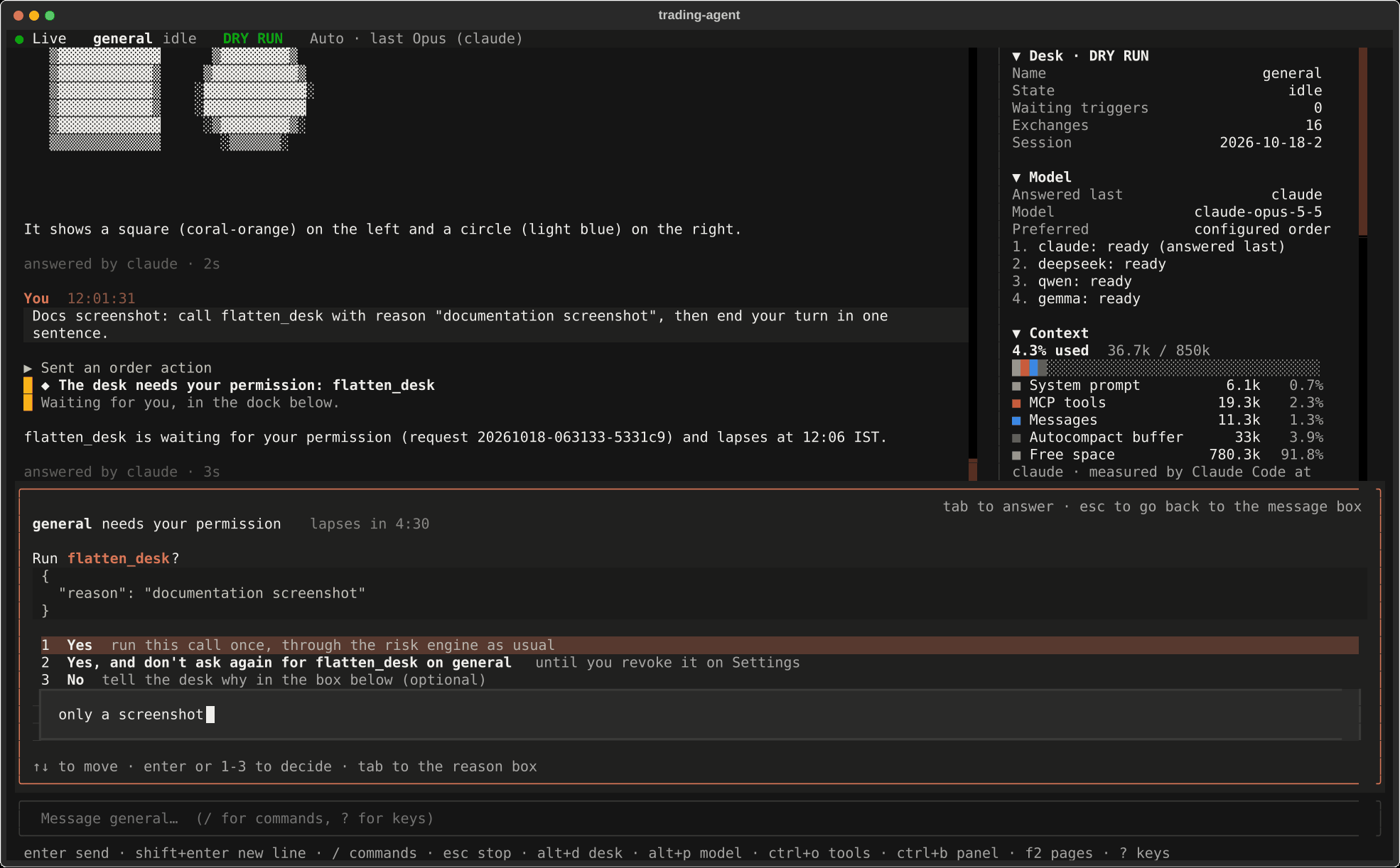
The table below names the parts from top to bottom.
| Part | What it shows |
|---|---|
| Status line | The live connection, the desk and its state, DRY RUN or LIVE ORDERS, and the model the desk tries first |
| Chat | Today's turns: your messages, tool calls folded into one line such as "Ran a command, looked at a picture", pictures, the desk's answers drawn as Markdown with tables, and the turn's status |
| Side panel | The web page's eight cards: desk, model, context window, funds, profit and loss, orders and trades, tools, outputs; Ctrl+B shows or hides it |
| Progress line | While the desk works: what it is doing, such as "Running a command… sleep 25", and the time so far |
| Request dock | A question, plan or permission request from the desk, waiting for your answer |
| File tray | Files waiting to go with your next message, with their upload state |
| Message box | Where you write; Enter sends |
| Key hints | The main keys |
Keys
The keys follow Claude Code wherever the meaning carries over. The table below lists them; ? in the empty message box shows the same list.
| Key | What it does |
|---|---|
| Enter | Send the message, or pick the highlighted entry of the command menu |
| Shift+Enter, Ctrl+J | Start a new line; Alt+Enter, or a backslash just before Enter, also work |
| Up, Down | Earlier prompts, from the first or last line of the box |
| Ctrl+R | Search earlier prompts |
/ |
The command menu, narrowing as you type; Tab or Enter picks |
@ |
Complete a file path; the file goes with the message |
| Ctrl+V | Attach the picture on the clipboard; text pastes as usual |
| Esc | Stop the running turn; twice clears the message box |
| Ctrl+C | Clear the box, or stop the running turn; twice to leave |
| Ctrl+D | Leave, when the box is empty (press twice) |
| Tab | Answer the request in the dock; Esc goes back to the message box |
| Alt+D | Switch desk |
| Alt+P | Choose the model the desk tries first |
| Ctrl+O | Open or fold every tool call |
| Ctrl+B | Show or hide the side panel |
| F2 | Go to a page |
| Ctrl+P | The command palette: every page and action, by name |
| Ctrl+T | Switch between the dark and the light theme |
Shift+Enter needs a terminal that reports it, such as Kitty, WezTerm, Ghostty or a VS Code terminal with its keyboard protocol on; Ctrl+J works everywhere.
Commands
A message that starts with a slash is a command. A few belong to the terminal program itself; every other command goes to the desk, which answers it exactly as it does on the web page and Telegram, so /status, /context, /btw, /think high and the rest work unchanged. Talking to a desk lists the desk's commands, and the menu that opens when you type / lists both kinds with what each does, including the desk's skills.
| Terminal command | What it does |
|---|---|
/attach PATH |
Attach a file to the next message |
/desk [NAME] |
Switch desk; without a name, a list opens |
/model |
Choose the model; /model NAME with a name goes to the desk instead |
/theme |
Switch between the dark and the light theme |
/keys |
The list of keys |
/exit, /quit |
Leave the program; the desks keep running |
/desks, /trading, … |
Open a page, as the next section describes |
Pages
The web page's pages are screens of their own. Each opens with its command, from the F2 list below, or by name from the Ctrl+P palette, and Esc goes back to the chat. Each screen's footer lists its keys.
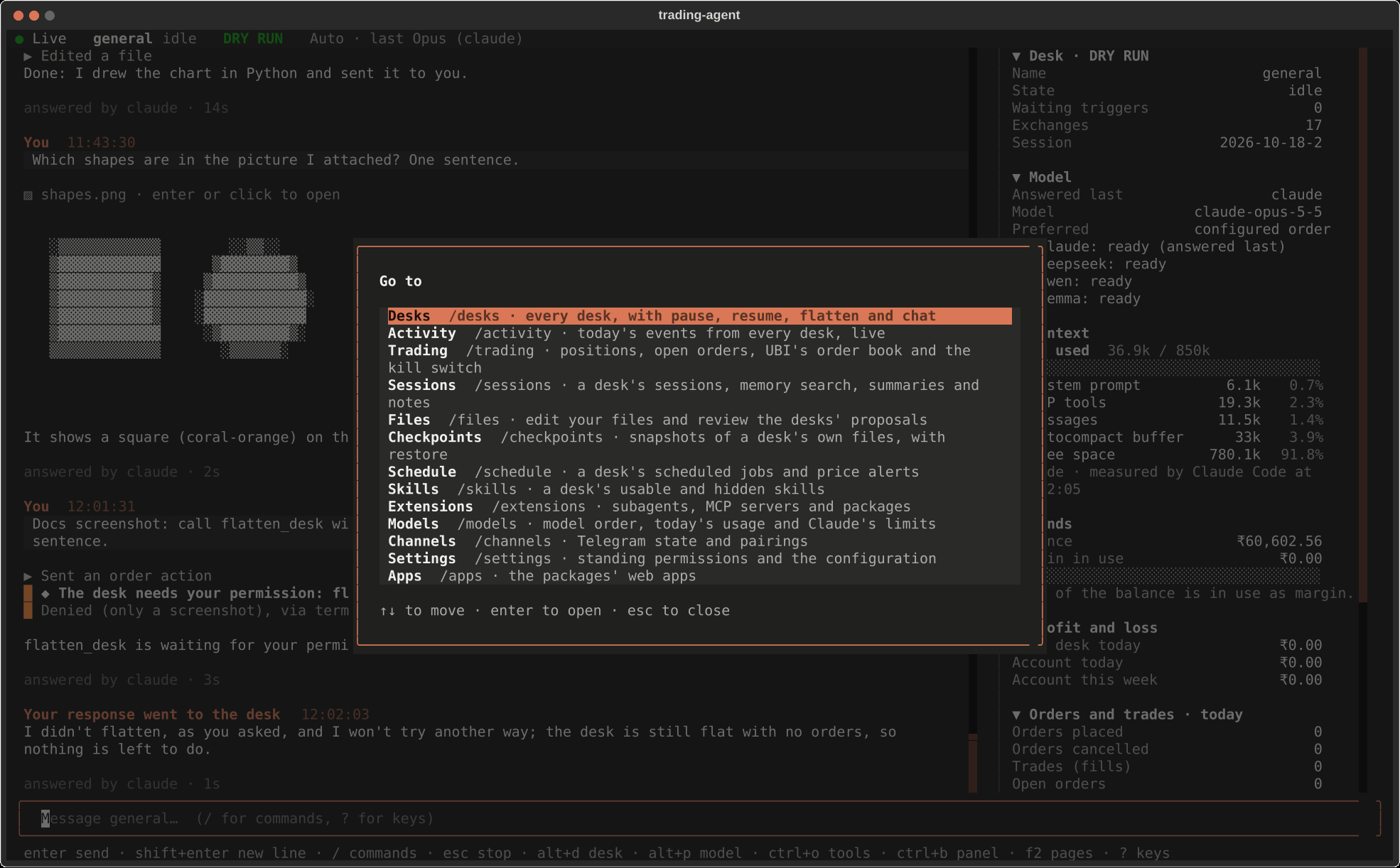
| Command | Page | Keys besides Esc and r (refresh) |
|---|---|---|
/desks |
Every desk's state, profit and models | Enter chats with it, p pauses or resumes, f flattens after asking for a reason |
/activity |
Today's events from every desk, newest first, live | d filters by desk, o shows routine events, / searches |
/trading |
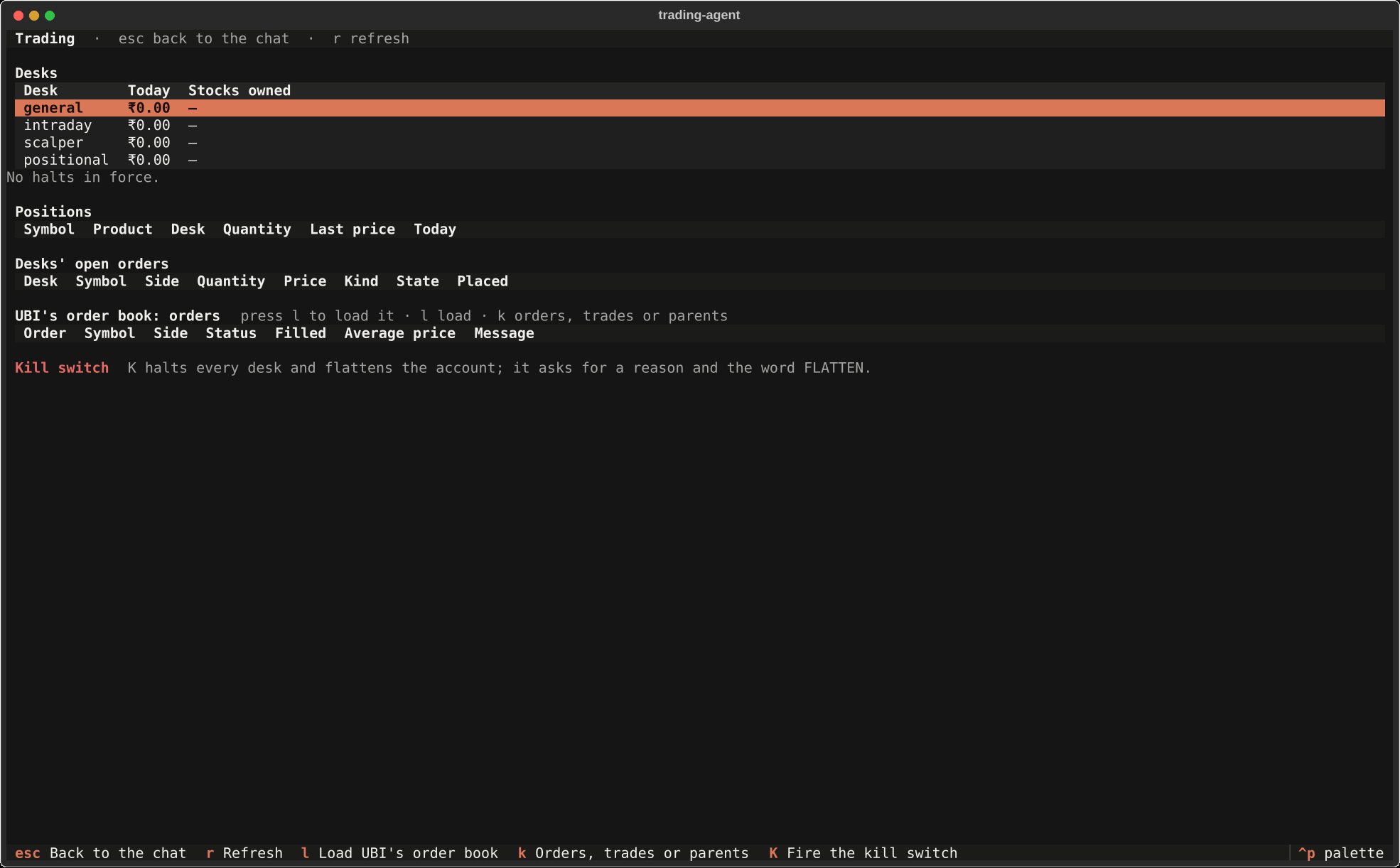
Desks' profit and stocks, halts, positions, open orders, UBI's order book | l loads the order book, k switches between orders, trades and open parents, K fires the kill switch |
/sessions |
A desk's sessions and exchanges, memory search, summaries and notes | d next desk, / searches |
/files |
Your files in an editor, and the desks' proposals as coloured diffs | Ctrl+S saves, Ctrl+U puts back the saved text, a accepts, x rejects, h shows decided proposals |
/checkpoints |
Snapshots of a desk's own files | s restores the highlighted one after asking for a reason |
/schedule |
A desk's jobs with their next runs, the latest runs, price alerts | n new job, g runs one now, Delete removes a job or alert |
/skills |
A desk's usable skills with their use, and the hidden ones | d next desk |
/extensions |
Subagents, MCP servers and packages | |
/models |
Each desk's model order, today's usage and costs, Claude's limits | |
/channels |
Telegram's state, codes waiting to be paired, paired chats | a approves, Delete revokes |
/settings |
Standing permissions, and the configuration with secrets masked | Delete revokes a permission |
/apps |
The packages' web apps and their units | s starts, t stops, e restarts, o opens it in the browser |
The kill switch asks, as on the web page, for a reason and the typed word FLATTEN, and it does nothing until both are given. Flatten and checkpoint restore ask for a reason.
/skills is also a desk command that lists the skills as text. In the terminal the page takes it, because the page shows the same skills with their use and the hidden ones too.
Questions, plans and permissions
A desk's questions, plans and permission requests wait in the dock above the message box, one at a time, permission requests first because they lapse. The cards work as on the web page: number keys or Enter choose, a question card has tabs when the desk asks several questions, a plan card approves or sends the plan back with feedback, and a permission card counts down to its lapse and offers Yes, Yes and don't ask again, and No with a reason.
The dock never takes the keyboard by itself. A desk keeps working while it waits, so a request can arrive while you are typing; if the dock took the keyboard, your Enter could answer it, and on a permission card the highlighted choice is Yes. Press Tab to go to the card and Esc to come back. Inside a permission or plan card, Tab and any letter you type go to its text box, so a reason you are typing can never turn into a Yes.
Answers given here are recorded as given "via terminal", which is what the transcript, the web page and Telegram then show.
Pictures and documents
A file goes with your message in any of four ways: type @ and a path, which the menu completes; /attach PATH; drag the file onto the terminal window, which pastes its path; or Ctrl+V for a picture on the clipboard. Files upload at once and wait in the tray above the message box; Backspace in the empty box removes the newest. The kinds and the 20 MB limit are the same as on the web page, described in Pictures and documents.
Pictures you attached, pictures a tool showed the desk and pictures the desk sends are drawn in the chat. A picture under a tool run stays visible while the run is folded. Enter or a click on a picture, or on a document the desk sent, opens it with your desktop's own program.
How sharp a picture looks depends on the terminal, as the table below shows.
| Terminal | How pictures are drawn |
|---|---|
| Kitty, WezTerm, Ghostty | Full pictures, with the Kitty graphics protocol |
foot, mlterm, xterm with Sixel, VS Code with terminal.integrated.enableImages on |
Full pictures, with Sixel |
| Any other | Coloured half-block characters, enough to see what a chart shows; Enter opens the real picture |
Ctrl+V reads the clipboard with wl-paste on Wayland or xclip on X11. On a Wayland desktop without wl-paste, xclip still reads pictures copied from most programs; installing the wl-clipboard package covers the rest.
One message from a script
-p sends one message or command, prints the reply and exits, as claude -p does. Text piped on standard input goes before the message, and --output-format chooses how the reply is printed.
bin/trading-agent -p /status
bin/trading-agent -p "What is NIFTY doing?" --desk intraday
bin/trading-agent -p /context --output-format json
cat notes.txt | bin/trading-agent -p "Summarise these notes"
| Format | What it prints |
|---|---|
text |
The reply as it streams in, with one line per tool call; the default |
json |
One object at the end, with the answer, the backend, the tool calls and any requests the desk raised |
stream-json |
Every event of the turn as one line of JSON, then the same final object |
This is the real output of bin/trading-agent -p /status against a gateway on 18 October 2026:
Desk: general
Mode: dry_run
State: idle, paused: no, triggers waiting: 0
Session: 2026-10-18-2, 0 exchange(s) so far
Models, in the order they will be tried:
1. claude: ready
2. deepseek: ready
3. qwen: ready
4. gemma: ready
When the desk is busy, the message is handed to the running turn, as every message is, and -p follows that turn to its answer. A second -p sent twelve seconds into a turn that was running sleep 25 printed this, and its answer is the running turn's answer:
  [The desk is busy, so your message goes to the running turn at its next tool call.]
  [Your message reached the running turn.]
The command finished and printed `Sun Oct 18 10:49:03 IST 2026`. BANANA
  [model] answered by claude
Questions and permission requests the desk raises meanwhile are printed with their request id, to be answered in the terminal program or on the web page, because a one-shot command cannot wait for a person. send is the same as -p with the text format.
When something is wrong
| What you see | What to do |
|---|---|
| "The gateway at http://127.0.0.1:8120 does not answer" | Start it: systemctl --user start trading-agent, or bin/trading-agent serve by hand |
| The program ends with "The gateway refused the access token" | Check TRADING_AGENT_GATEWAY_ACCESS_TOKEN in .env; the gateway reads it when it starts, so restart the service after changing it |
| The status line says Reconnecting… | The gateway restarted or stopped; the chat reloads by itself once it is back |
| Shift+Enter sends instead of starting a line | The terminal does not report Shift+Enter; use Ctrl+J |
| Pictures look blocky | The terminal has no picture protocol; Enter on a picture opens it in your image viewer |